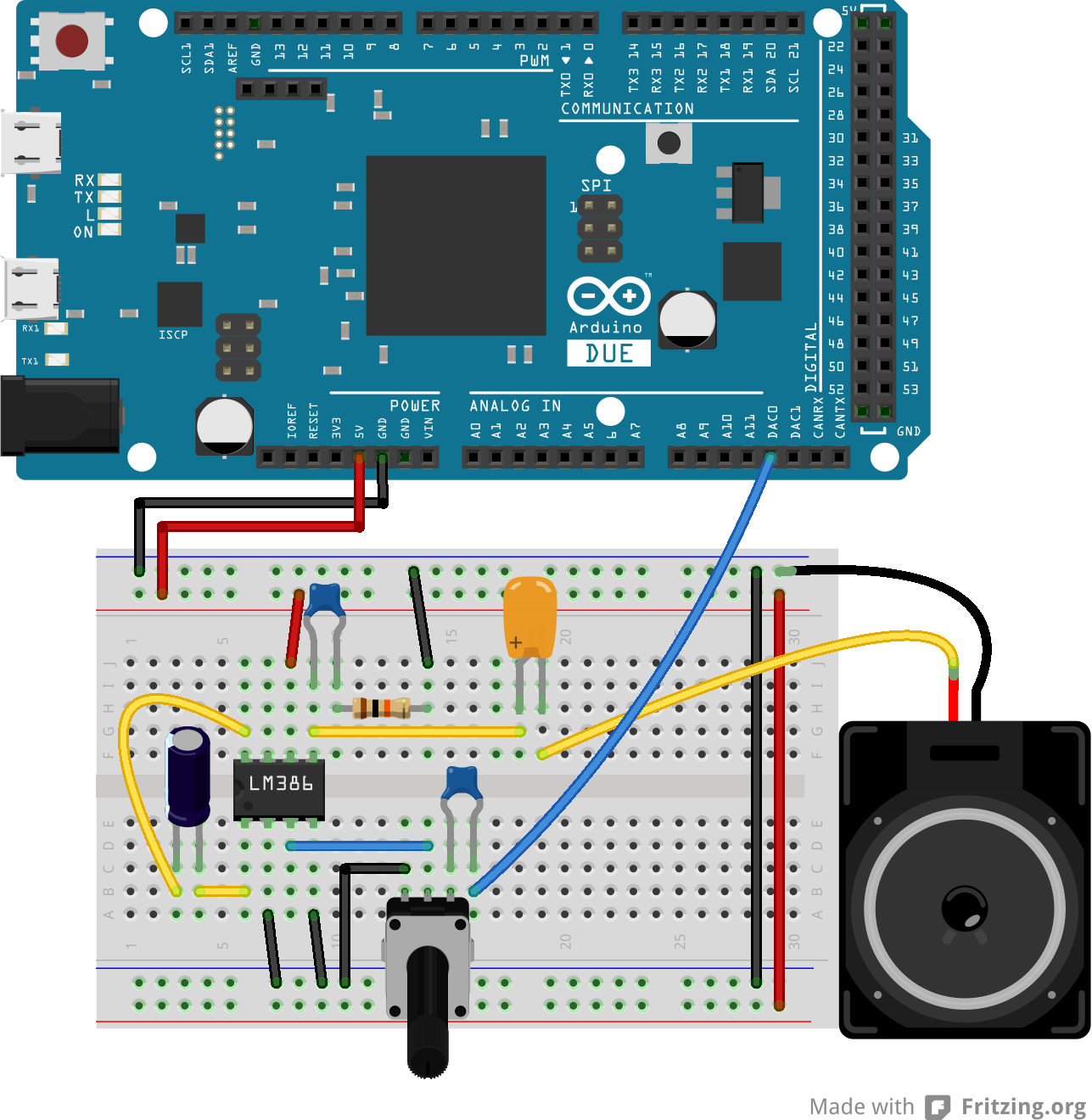
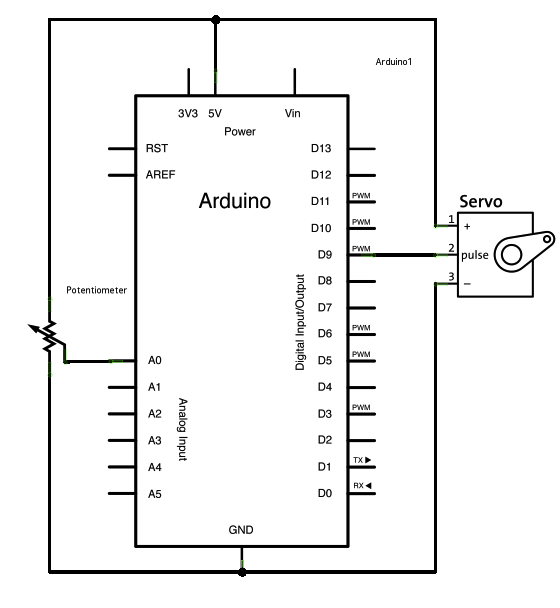
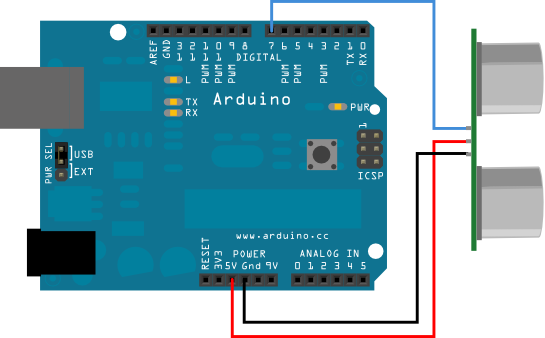
Schematic
The code:
arduino project, arduino example, arduino murah, murah arduino, sketch, shield arduino, arduino, arduino sketch, arduino bootloader, arduino uno
Schematic
Schematic

Arduino code to display text on a 16x2 LCD using the I2C wire library and an I2C LCD module (PCF8574):
First, make sure you have installed the "LiquidCrystal_I2C" library. If you haven't, you can download it from the Library Manager in the Arduino IDE.
#include <Wire.h>
#include <LiquidCrystal_I2C.h>
// Set the LCD address (0x27 or 0x3F) according to your module
#define I2C_ADDR 0x27
// Set the LCD size (16x2)
#define LCD_COLUMNS 16
#define LCD_ROWS 2
// Create an instance of the LCD object
LiquidCrystal_I2C lcd(I2C_ADDR, LCD_COLUMNS, LCD_ROWS);
void setup() {
// Initialize the LCD
lcd.begin(LCD_COLUMNS, LCD_ROWS);
// Turn on the backlight (if available)
lcd.backlight();
// Write text to the LCD
lcd.print("Hello, World!");
}
void loop() {
// Add your code here (if needed)
}
In this example, we use the "LiquidCrystal_I2C" library to simplify the communication between the Arduino and the I2C LCD module (PCF8574). The library provides functions like lcd.print(), lcd.setCursor(), lcd.clear(), and more to control the LCD easily.
Make sure you have connected the SDA and SCL pins of the I2C module to the corresponding pins on your Arduino. Also, don't forget to provide power and ground connections.
Before uploading the code to your Arduino, double-check the I2C address of your LCD module. If it's different from 0x27, update the line #define I2C_ADDR 0x27 with the correct address.
That's it! Now you should be able to see the "Hello, World!" message on your 16x2 LCD connected via I2C. Good luck with your project!
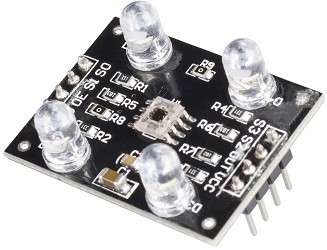
Calibrating a color sensor like the TCS 3200 typically involves a few steps to ensure accurate color readings. Here's a general outline of the calibration process:
Note that the exact calibration process may vary depending on your specific sensor and application. Be sure to consult the manufacturer's documentation for detailed instructions and recommended best practices.
To calibrate the TCS3200 color sensor, you can follow these steps:
Here is an example of basic program code to read RGB values on the TCS3200 color sensor:
#include <Adafruit_TCS3200.h>
Adafruit_TCS3200 colorSensor(TCS3200_S2, TCS3200_S3, TCS3200_OUT);
void setup() {
Serial.begin(9600);
colorSensor.begin();
}
void loop() {
colorSensor.setResolution(TCS3200_18BIT);
colorSensor.writeRegister(0x00, TCS3200_MEASUREMENT_MODE);
delay(50);
uint16_t red = colorSensor.readRed();
uint16_t green = colorSensor.readGreen();
uint16_t blue = colorSensor.readBlue();
Serial.print("RGB: ");
Serial.print(red);
Serial.print(" ");
Serial.print(green);
Serial.print(" ");
Serial.println(blue);
}
You can calibrate the sensor by changing the gain and integration time in the following sections:
colorSensor.setGain(TCS3200_GAIN_1X);
colorSensor.setIntegrationTime(TCS3200_INTEGRATIONTIME_2_4MS);
This code uses the SoftwareSerial library to create a serial communication between the Arduino and a Bluetooth module. The Bluetooth module should be connected to the specified RX and TX pins and set to 9600 baud rate.
Note that this code is just a basic example and may need modifications depending on the specific setup and requirements.
To log data from an Arduino IoT device to a web server, you can follow these general steps:
#include <WiFi.h>
#include <HTTPClient.h>
const char* ssid = "your_SSID";
const char* password = "your_PASSWORD";
const char* serverName = "your_SERVER_IP_ADDRESS";
void setup() {
WiFi.begin(ssid, password);
while (WiFi.status() != WL_CONNECTED) {
delay(1000);
Serial.println("Connecting to WiFi...");
}
Serial.println("Connected to WiFi");
}
void loop() {
HTTPClient http;
http.begin("http://" + String(serverName) + "/data");
http.addHeader("Content-Type", "application/json");
int httpResponseCode = http.POST("{\"value\":\"" + String(analogRead(A0)) + "\"}");
String response = http.getString();
Serial.println(httpResponseCode);
Serial.println(response);
http.end();
delay(10000);
}
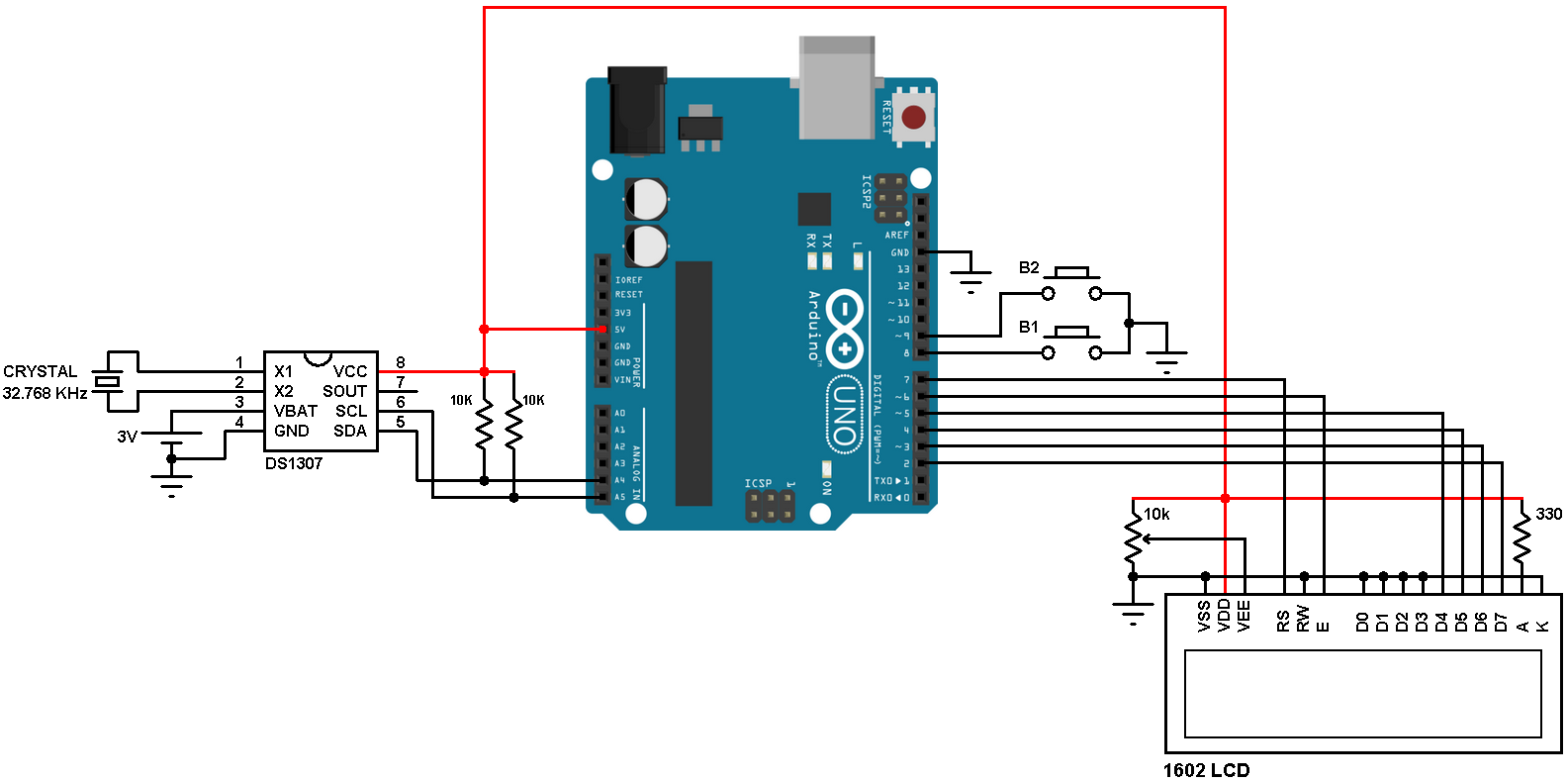
An Arduino circuit for a digital clock can be created using an Arduino board, a 16x2 LCD display, a real-time clock module, and a few passive components such as resistors and a capacitor. The real-time clock module, such as the DS1307, provides the timekeeping functionality, while the LCD display is used to display the current time. The Arduino board is used to control the LCD and interface with the real-time clock module. A simple circuit diagram could be:
Arduino ------------------------- LCD
|
|
R1,R2
|
|
DS1307
Arduino oding for clock display
Here is an example of Arduino code for displaying the current time on an LCD using a real-time clock module:
Copy code
#include <Wire.h>
#include <LiquidCrystal_I2C.h>
#include <RTClib.h>
RTC_DS1307 rtc;
LiquidCrystal_I2C lcd(0x27, 16, 2);
void setup() {
lcd.begin();
lcd.backlight();
rtc.begin();
if (!rtc.isrunning()) {
lcd.print("RTC is NOT running!");
// following line sets the RTC to the date & time this sketch was compiled
rtc.adjust(DateTime(F(__DATE__), F(__TIME__)));
}
}
void loop() {
DateTime now = rtc.now();
lcd.setCursor(0, 0);
lcd.print(now.hour(), DEC);
lcd.print(':');
lcd.print(now.minute(), DEC);
lcd.print(':');
lcd.print(now.second(), DEC);
lcd.setCursor(0, 1);
lcd.print(now.day(), DEC);
lcd.print('/');
lcd.print(now.month(), DEC);
lcd.print('/');
lcd.print(now.year(), DEC);
delay(1000);
}
This code uses the Wire and RTClib libraries to interface with the real-time clock module. The LiquidCrystal_I2C library is used to control the LCD display. The code first checks if the real-time clock is running, and sets the time if it is not. Then, in the loop, it continuously updates the LCD display with the current time and date retrieved from the real-time clock.
Note: in the code above, you can see that the I2C address of the LCD is 0x27, if it's different for you, you need to change that to the correct one.
This is a basic Kalman filter that uses a constant measurement noise and process noise. You can adjust these values to fine-tune the filter for your specific application. The filter takes a measurement (z_measured) and uses it to estimate the real value (z_real). The estimated value is then updated with each new measurement.
#define MEASUREMENT_NOISE 0.1
#define PROCESS_NOISE 0.05
double x_est_last = 0;
double P_last = 0;
double K;
double P;
double x_temp_est;
double x_est;
double z_measured = 0; // the measured value
double z_real = 0; // the real value
void KalmanFilter()
{
x_temp_est = x_est_last;
P = P_last + PROCESS_NOISE;
K = P / (P + MEASUREMENT_NOISE);
x_est = x_temp_est + K * (z_measured - x_temp_est);
P = (1 - K) * P;
x_est_last = x_est;
P_last = P;
}
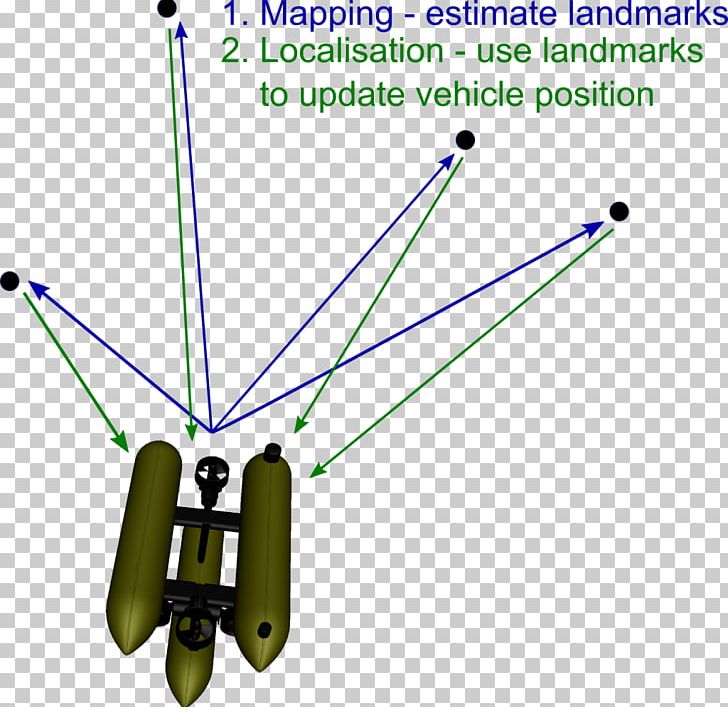
The Kalman filter is a mathematical algorithm that uses a series of measurements observed over time, containing noise (random variations) and other inaccuracies, and produces estimates of unknown variables that tend to be more accurate than those based on a single measurement alone. It is used in a wide range of applications, including signal processing, control systems, and navigation.
The filter is named after its inventor, Rudolf Kalman, who first described it in a paper published in 1960. It is based on a series of mathematical equations that describe how the variables of interest (such as the position and velocity of an object) evolve over time, and how these variables are related to the measurements that are being made. The filter uses these equations to estimate the values of the variables based on the measurements, and then updates these estimates as new measurements become available.
The Kalman filter is particularly useful in systems where the variables of interest are subject to random variations (noise) and other inaccuracies, and where the measurements are also subject to similar errors. The filter is able to take into account the uncertainty in the measurements and the system dynamics, and produce estimates that are optimal in some sense (e.g., minimum variance).
Case Study
#include <Kalman.h>
Kalman kalman;
int lm35Pin = A0; // The pin the LM35 is connected to
double temperature;
double filteredTemperature;
void setup() {
Serial.begin(9600);
kalman.setMeasurementNoise(0.1); // Set the measurement noise variance
kalman.setProcessNoise(0.01); // Set the process noise variance
}
void loop() {
temperature = analogRead(lm35Pin) * 0.48828125; // Read the LM35 and convert to degrees Celsius
filteredTemperature = kalman.updateEstimate(temperature); // Update the filtered temperature estimate
Serial.print("Temperature: ");
Serial.print(temperature);
Serial.print("\tFiltered Temperature: ");
Serial.println(filteredTemperature);
delay(100);
}
In this example, the LM35 is connected to pin A0 on the Arduino, and the analogRead() function is used to read the voltage output of the LM35. The voltage is then converted to temperature in degrees Celsius using the LM35's voltage-to-temperature conversion factor.
The Kalman filter is used to filter out noise in the temperature measurement by updating the estimate of the temperature with the new measurement and the previous estimate.
You should adjust the measurement noise and process noise variance to match your system's characteristics and specific requirements.
It's important to note that the example code is for illustrative purposes only and may need to be modified to work with your specific hardware and application.
Here another Example Code
===========================================================
#include <Kalman.h>
Kalman kalmanX; // Create Kalman filter objects
Kalman kalmanY;
double x = 0; // Set initial values
double y = 0;
double dx, dy;
void setup() {
Serial.begin(9600);
// Set the measurement noise variance for each filter
kalmanX.setMeasurementNoise(1);
kalmanY.setMeasurementNoise(1);
// Set the process noise variance for each filter
kalmanX.setProcessNoise(0.01);
kalmanY.setProcessNoise(0.01);
}
void loop() {
x = kalmanX.updateEstimate(x + dx); // Update the estimate for x
y = kalmanY.updateEstimate(y + dy); // Update the estimate for y
Serial.print("X: ");
Serial.print(x);
Serial.print("\tY: ");
Serial.println(y);
delay(100);
}
| This is example how to drive Mosfet using arduino, port to drive is port 9 as PWM can send data from 0 to 255 as analog voltage from 0 to 5V. Video example at : https://youtu.be/-zfrnw4Iwpg /* |
| Fading |
| This example shows how to fade an LED using the analogWrite() function. |
| The circuit: |
| - GATE MOSFET attached from digital pin 9 to through 100 ohm resistor. |
| created 1 Nov 2008 |
| by David A. Mellis |
| modified 30 Aug 2011 |
| by Tom Igoe |
| This example code is in the public domain. |
| https://www.arduino.cc/en/Tutorial/BuiltInExamples/Fading |
| */ |
| int ledPin = 9; // LED connected to digital pin 9 |
| void setup() { |
| // nothing happens in setup |
| } |
|
|
| void loop() { |
| // fade in from min to max in increments of 5 points: |
| for (int fadeValue = 0 ; fadeValue <= 255; fadeValue += 5) { |
| // sets the value (range from 0 to 255): |
| analogWrite(ledPin, fadeValue); |
| // wait for 30 milliseconds to see the dimming effect |
| delay(30); |
| } |
|
|
| // fade out from max to min in increments of 5 points: |
| for (int fadeValue = 255 ; fadeValue >= 0; fadeValue -= 5) { |
| // sets the value (range from 0 to 255): |
| analogWrite(ledPin, fadeValue); |
| // wait for 30 milliseconds to see the dimming effect |
| delay(30); |
| } |
This Problem is:
QA:
Hi to all at arduino
just wondering if any one can help.
i have an uno r3 and a nano pro.
the uno works great no probs, connects, uploads. really happy with it.
but when i plug the nano in to xp sp2 pc via usb, it finds new hardware but wont install the drivers. i cant find these usb 2.0-serial drivers anywhere. iv tried re-installing the ftdi drivers from arduino site but the comm port still does not show up in the ide and i still have usb 2.0-serial flagged up in device manager.
again, if any ones got the answer please help.
many thanks
Answer:
Just download this driver CH341SER on file ZIP on this then UNZIP then do like this
1. Open device manager
2. Righth clik Other devices -> USB2.0 Ser --> update driver
3. Click update driver---> find folder (driver CH341SER)
4. Find driver foler for USB2.0
5. Finis, succes to install, OK
Now your PC ready connect to USB arduino
/*
Ping))) Sensor
This sketch reads a PING))) ultrasonic rangefinder and returns the distance
to the closest object in range. To do this, it sends a pulse to the sensor to
initiate a reading, then listens for a pulse to return. The length of the
returning pulse is proportional to the distance of the object from the sensor.
The circuit:
- +V connection of the PING))) attached to +5V
- GND connection of the PING))) attached to ground
- SIG connection of the PING))) attached to digital pin 7
created 3 Nov 2008
by David A. Mellis
modified 30 Aug 2011
by Tom Igoe
This example code is in the public domain.
http://www.arduino.cc/en/Tutorial/Ping
*/
// this constant won't change. It's the pin number of the sensor's output:
const int pingPin = 7;
void setup() {
// initialize serial communication:
Serial.begin(9600);
}
void loop() {
// establish variables for duration of the ping, and the distance result
// in inches and centimeters:
long duration, inches, cm;
// The PING))) is triggered by a HIGH pulse of 2 or more microseconds.
// Give a short LOW pulse beforehand to ensure a clean HIGH pulse:
pinMode(pingPin, OUTPUT);
digitalWrite(pingPin, LOW);
delayMicroseconds(2);
digitalWrite(pingPin, HIGH);
delayMicroseconds(5);
digitalWrite(pingPin, LOW);
// The same pin is used to read the signal from the PING))): a HIGH pulse
// whose duration is the time (in microseconds) from the sending of the ping
// to the reception of its echo off of an object.
pinMode(pingPin, INPUT);
duration = pulseIn(pingPin, HIGH);
// convert the time into a distance
inches = microsecondsToInches(duration);
cm = microsecondsToCentimeters(duration);
Serial.print(inches);
Serial.print("in, ");
Serial.print(cm);
Serial.print("cm");
Serial.println();
delay(100);
}
long microsecondsToInches(long microseconds) {
// According to Parallax's datasheet for the PING))), there are 73.746
// microseconds per inch (i.e. sound travels at 1130 feet per second).
// This gives the distance travelled by the ping, outbound and return,
// so we divide by 2 to get the distance of the obstacle.
// See: http://www.parallax.com/dl/docs/prod/acc/28015-PING-v1.3.pdf
return microseconds / 74 / 2;
}
long microsecondsToCentimeters(long microseconds) {
// The speed of sound is 340 m/s or 29 microseconds per centimeter.
// The ping travels out and back, so to find the distance of the object we
// take half of the distance travelled.
return microseconds / 29 / 2;
}